
Published on UzonMart | Financial Guide
Original Contributors: Amar Nalawade and Saurav Jaiswar, Founders of Jora Capital
Managing your bank account has become easier with mobile banking. Today, you do not need to visit a bank branch or wait in long queues just to access your transaction history. Whether you need a bank statement for a loan application, financial planning, income verification or personal records, you can download it directly to your smartphone.
Most major Indian banks provide digital banking facilities that allow customers to view and download their account statements in PDF format. With an active mobile banking account and a stable internet connection, the process can take just a few minutes.
A bank statement is also an important financial document when applying for credit or loans. It helps lenders understand income patterns, financial transactions and account activity.
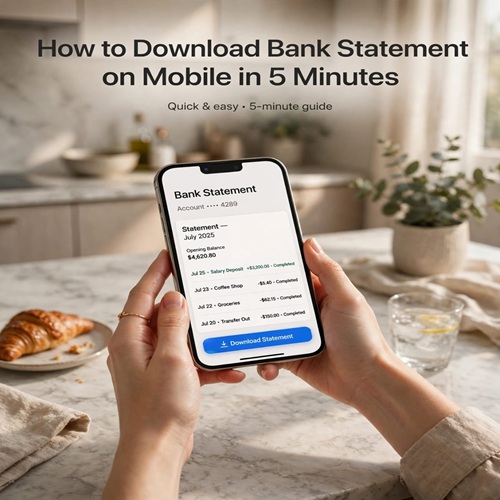
In this guide, we explain how to download a bank statement on mobile in 5 minutes, the requirements, steps for popular Indian banks and solutions to common downloading problems.
What Is a Bank Statement?
A bank statement is an official financial record that contains details of transactions made through your bank account over a selected period.
It generally includes deposits, withdrawals, money transfers, digital payments and account balances. Depending on your bank, you may be able to download statements for a particular month, multiple months or a custom date range.
Why Is a Bank Statement Important?
A bank statement can help you:
-
Monitor monthly income and expenses.
-
Review deposits, withdrawals and online payments.
-
Maintain personal financial records.
-
Provide financial documents for loan applications.
-
Support certain visa and documentation applications.
-
Prepare financial information for income tax purposes.
Keeping digital copies of your bank statements can make financial management easier and more organised.
What Do You Need Before Downloading a Bank Statement?
Before starting the download process, make sure you have the following:
-
An active savings or current bank account.
-
A mobile number registered with your bank.
-
Access to your bank's official mobile application or internet banking.
-
A stable internet connection.
-
Your banking login credentials.
Some banks may require additional verification before allowing you to access or download your statement.
Security Tip: Never share your banking password, ATM PIN, CVV or OTP with anyone.
How to Download a Bank Statement on Mobile in 5 Minutes
The process is generally similar across most Indian banking applications. Follow these simple steps to download your bank statement.
Step 1: Open Your Bank's Official Mobile App
Open the official mobile banking application installed on your smartphone.
If you have not installed the application, download it through the Google Play Store or Apple App Store. Always verify the application developer and use official banking links.
Step 2: Log In to Your Bank Account
Enter your registered username, password or mobile banking PIN. You may also be able to use biometric authentication if your bank supports it.
Complete any additional verification requested by your bank.
Step 3: Select Your Bank Account
After logging in, select the savings or current account for which you need the statement.
If you maintain multiple accounts with the same bank, carefully verify the account details before continuing.
Step 4: Find the Account Statement Option
Look for options such as:
-
Account Statement
-
View Statement
-
Transaction History
-
E-Statement
-
Download Statement
These options are generally available under the Accounts, Banking or Services section.
Step 5: Select Your Required Date Range
Choose the period for which you want to download the statement.
Common options include:
-
Previous month
-
Last 30 days
-
Last 3 months
-
Last 6 months
-
Custom date range
If you need a statement for a loan application, confirm the required period with your lender. Many loan applications request three to six months of bank statements.
Step 6: Choose PDF Format
Select PDF as the preferred download format if the option is available.
PDF files are convenient for reading, saving and sharing. Some banking applications may also provide Excel or CSV formats for transaction analysis.
Step 7: Download and Save Your Statement
Tap the Download, Generate or View Statement option.
Save the file to your smartphone, usually in the Downloads folder. Open the downloaded PDF and verify that it contains the correct account details and transaction period.
Your bank statement is now available on your mobile phone.
How to Download Bank Statements from Popular Indian Banks
Most major Indian banks offer mobile banking and internet banking facilities. Below are general instructions for accessing account statements.
1. SBI Bank Statement Download
To download your SBI bank statement:
-
Open the official YONO SBI application or SBI internet banking.
-
Log in using your registered credentials.
-
Navigate to the Accounts or Account Services section.
-
Find the Account Statement or Transaction History option.
-
Select your required date range.
-
View or download your statement.
2. HDFC Bank Statement Download
Follow these steps to access your HDFC Bank statement:
-
Open the official HDFC Bank mobile application or NetBanking.
-
Log in securely.
-
Select your savings or current account.
-
Navigate to the account statement or transaction details section.
-
Choose your preferred date range.
-
Generate and save the statement.
3. ICICI Bank Statement Download
To download your ICICI Bank account statement:
-
Open the official iMobile application or internet banking.
-
Sign in using your banking credentials.
-
Select your required bank account.
-
Navigate to Account Details or Statement Services.
-
Choose the required period.
-
Download or view the statement.
4. Axis Bank Statement Download
Follow these general steps:
-
Open the official Axis Bank mobile application or internet banking.
-
Log in using your registered credentials.
-
Select your bank account.
-
Find the Account Statement option.
-
Choose the required date range.
-
Download and save the document.
5. Bank of Baroda Statement Download
To access your Bank of Baroda statement:
-
Open the official bob World application.
-
Log in securely.
-
Select your bank account.
-
Navigate to Account Statement or Transaction History.
-
Select the required period.
-
View or download the statement.
Important: Banking application layouts and menu names may change. These are general directions, so always follow the latest instructions provided by your bank.
Other Ways to Get Your Bank Statement
If you cannot download your statement through a mobile banking application, there are other ways to access it.
Internet Banking
Visit your bank's official website through your mobile browser. Log in to your account, navigate to the statement section, select the required date range and download the document.
Registered Email Address
Some banks provide monthly or periodic e-statements to the email address registered with the account. Check your inbox for official bank communications.
If the PDF is password-protected, follow the bank's official instructions to open it.
WhatsApp Banking
Certain banks provide banking services through officially verified WhatsApp accounts. You may be able to request account information or statements through these services.
Always verify the WhatsApp number through your bank's official website.
Visiting Your Bank Branch
You can also visit your home branch and request a printed account statement. Carry the required identification and account details. Any applicable charges depend on your bank's policies.
Bank Statement PDF vs Passbook: What Is the Difference?
A passbook and a digital bank statement both provide transaction information, but their formats and uses are different.
A passbook is a physical record maintained and updated through banking facilities. A digital bank statement is an electronic document that can be generated for a selected date range.
PDF statements are convenient for digital storage and sharing. However, some organisations may require a bank-stamped statement or a specific document format.
Always check the requirements before submitting your banking documents.
Common Bank Statement Download Problems and Their Solutions
Sometimes users face difficulties while downloading bank statements. Here are some common problems and possible solutions.
1. Unable to Log In
Check your internet connection and login credentials. If your account is locked, follow your bank's official account recovery process.
2. Bank Statement Not Available
Recent transactions or newly opened accounts may not immediately display complete statement details. Verify your selected date range and try again later.
3. PDF File Not Opening
Make sure your smartphone has a compatible PDF reader. If the file appears incomplete or corrupted, download it again.
4. Download Button Not Working
Check your internet connection, available storage space and application permissions. Close and reopen the banking application before trying again.
5. OTP Not Received
Check whether your registered mobile number is active and has sufficient network coverage. If the issue continues, contact your bank's official customer support.
Important Safety Tips While Downloading Bank Statements
Bank statements contain confidential financial information, including account details and transaction history. Protecting this information is important.
Follow these security practices:
-
Always use your bank's official mobile application or website.
-
Avoid logging in through unknown links received through SMS or email.
-
Never share your OTP, PIN, password or CVV.
-
Avoid downloading statements on public or shared devices.
-
Do not send complete bank statements to unverified individuals.
-
Store downloaded PDF files in a secure location.
-
Verify the recipient before sharing financial documents.
If you notice any unauthorised activity or suspect that someone has accessed your banking information, contact your bank immediately through its official support channel.
Frequently Asked Questions About Downloading Bank Statements
1. Can I download a bank statement on my mobile phone?
Yes. Most major Indian banks allow eligible customers to view and download their account statements through official mobile banking applications.
2. How can I download a bank statement in PDF format?
Log in to your bank's official mobile application, select your account, choose the required date range and select PDF format if available.
3. Can I download a bank statement without visiting a bank branch?
Yes. If mobile banking, internet banking or e-statement facilities are available for your account, you can generally download your statement without visiting a branch.
4. Is downloading a bank statement free?
Many banks provide digital statements without additional charges. However, fees and conditions may vary depending on the bank and account type.
5. Can I download a six-month bank statement?
Many banks allow customers to download statements for six months or a custom period. The maximum available date range depends on the bank.
6. What should I do if my bank statement PDF is password-protected?
Check your bank's official instructions for the correct password format. Different banks may follow different security procedures. Never share the password with unverified individuals.
7. Can I use a bank statement for a loan application?
Yes. Bank statements are commonly requested during loan applications to review financial transactions and account activity. The lender decides the required statement period, format and verification process.
8. How can I download an old bank statement?
Open your bank's official mobile application or internet banking service and select the historical date range. If older statements are unavailable online, contact your bank.
Conclusion
Downloading a bank statement on mobile is a simple and convenient way to manage your financial records. With an active mobile banking account, you can select your bank account, choose the required date range and save the statement in PDF format within a few minutes.
Whether you use SBI, HDFC Bank, ICICI Bank, Axis Bank or Bank of Baroda, digital banking makes accessing financial documents easier.
Always use official banking channels, protect your confidential information and verify your statement before sharing it for financial or official purposes.
Explore more business, finance and digital banking guides on UzonMart.
About the Original Contributors
Jora Capital – Smart Credit, Made Simple
This article is contributed by Amar Nalawade and Saurav Jaiswar, Founders of Jora Capital.
-
Website: https://joracapital.co/
-
Download the Jora Capital App: https://play.google.com/store/apps/details?id=com.joracapital.app&hl=en_IN
-
Amar Nalawade: https://www.linkedin.com/in/amar-nalawade-44900b409/
-
Saurav Jaiswar: https://www.linkedin.com/in/saurav-jaiswar-162184408/
Disclaimer: This article is for general informational purposes only and does not constitute financial advice. Banking application features, procedures and charges may change. Always follow your bank's official instructions. Loan approval is subject to the lender's assessment.